
I have seen many “house rules” signs on Pinterest and didn’t think I ever needed one. After all, the rules for playing are pretty basic: be nice, say nice things, and don’t wreck anything. But since I started looking after a … Continue reading
I have seen many “house rules” signs on Pinterest and didn’t think I ever needed one. After all, the rules for playing are pretty basic: be nice, say nice things, and don’t wreck anything. But since I started looking after a … Continue reading
December is always such a busy month filled with Christmas parties, school concerts, sleigh rides, and visits with family. There are so many precious memories created and, as a mom of small children, I want those memories preserved in a photo book.
In the scrapbooking world, recording December memories each day is a popular concept which I have tried, but gave up after the first week each time. With all the festivities going on, I kept forgetting to take photos and when I did, I had no time to sit down and document each days special moment. The last thing I needed at this joyous time of year was something else to stress about!
I still wanted to make photo books of our Christmas memories, but had to think of a way that worked better for me. In 2011 I made our first holiday photo book that focused on 25 fun things we like to do at Christmas time. For example: decorating the house and tree, making Christmas crafts with the kids, going for walks to see the neighbourhood lights, baking, writing letters to Santa, etc. It was fun to look through this book again and see how small the kids were and how many of these traditions we continue to do each year.


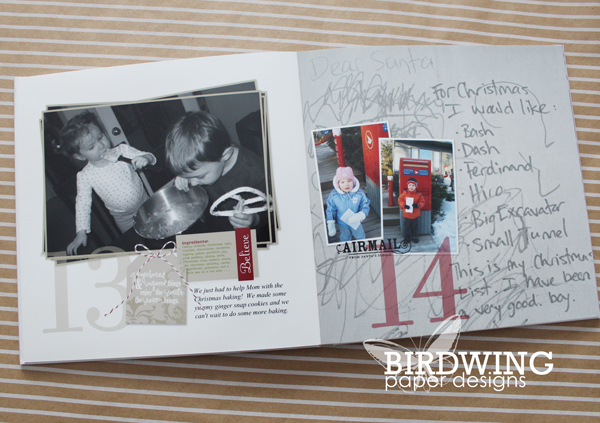
 Last year I put together another Christmas book in honour of our Elf, Arthur. The kids were so fascinated by him and said the cutest things when they found him, that I had to preserve those memories and quotes. Initially it was going to be the 25 days of Arthur, but I only had pictures from 18 days. It ended up being a smaller book with 12 of the best photos with our elf. In ten years time, no one is going to care that I didn’t get all 25 pictures! If you want to read more about this photo book, visit here for the post from last year.

There are so many great ways to document those memorable December days. In the future I would love to do a book just about the tree ornaments and the history or stories behind them. I would also like to make another one similar to the Christmas 2011 book when the kids are a bit older just to see what activities have become yearly traditions for our family.
I decided not to make a December photo book for this holiday season, but I am thinking about making one for the winter days of January or February. Christmas isn’t the only time of year to preserve memories, it could be done for any month. Discovering and documenting the joy of winter would help make those cold months more bearable instead of just wishing it were spring.
How do you document your holiday season? I would love to have some inspiration for next year!
Leah

Last spring Canada Post increased the cost of stamps to 85¢ (if bought as a pack, or $1.00 for individual stamps) and that price hike will affect my Christmas card list this holiday season. I usually mail out about 50 cards, but … Continue reading

October is the time of year our family likes to prepare for winter by cleaning the yard, putting up the Christmas lights before it snows, making sure the kids have boots, jackets, and skates that fit, and saying goodbye to grandparents … Continue reading

A few months ago I wrote a post about using the Project Life style of memory keeping to organize all of my old, real (not digital) photos. (Read more about that post here.) I had 7 albums taking up too much … Continue reading

In the previous post, How to Recolour a Chipboard Alphabet, I showed how to add colour to plain chipboard and blend the colour so the texture of the chipboard showed through. In this tutorial, I will show you how to go a step further and add pattern or distressing to the chipboard using Photoshop (PS).
The previous tutorial also explains how to move the letters from the .png file (found in the Fall Edition of Hello 2014 digital kit) to a New or Open file, so refer to that first if needed.
The first step is to select the letters (CMD/CTRL + Layer Thumbnail) which results in marching ants around the edges of the letters. At the bottom of the layers panel select Create New Fill Layer (half-filled circle icon) and choose Pattern from the drop down menu.
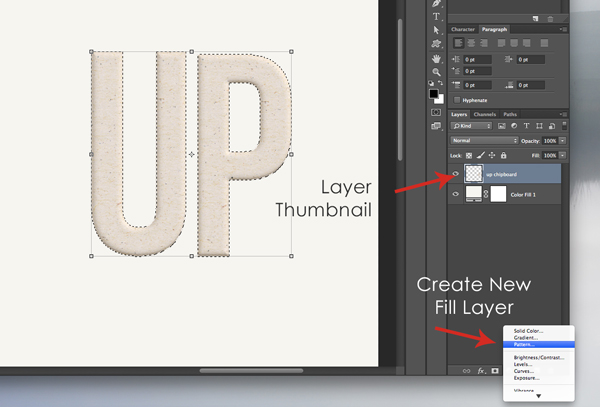
The Pattern Fill menu will appear. Select the type of pattern and scale/size. Click OK and the pattern will appear only on the letters chosen. If you need to change the type or size of pattern, the menu can always be accessed by double clicking on the Pattern Fill Layer Thumbnail.
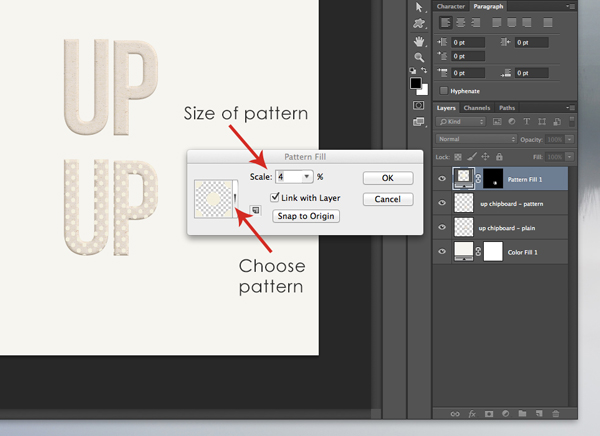
To blend the pattern, choose a blending option from the top of the layers panel. For chipboard, the Multiply blend works well and lets the texture of the chipboard show through. But sometimes, experimenting with the blending options can result in great,unexpected effects, so try to play around with it.

The end result is chipboard with a bit more character that can be customized to any layout.
I first learned this technique in Tiffany Tillman’s “Title Express” class at Scrapaneers and I wanted to share it because I use this effect all of the time on various chipboard letters and shapes.
To distress the chipboard, we begin by selecting the letters as usual (CMD/CTRL + Layer Thumbnail), but when adding colour, we want to pull it away from the edges of the letters a bit. To do that go to Select > Modify > Contract, and from the menu that appears select “Contract By 10 Pixels” > OK.
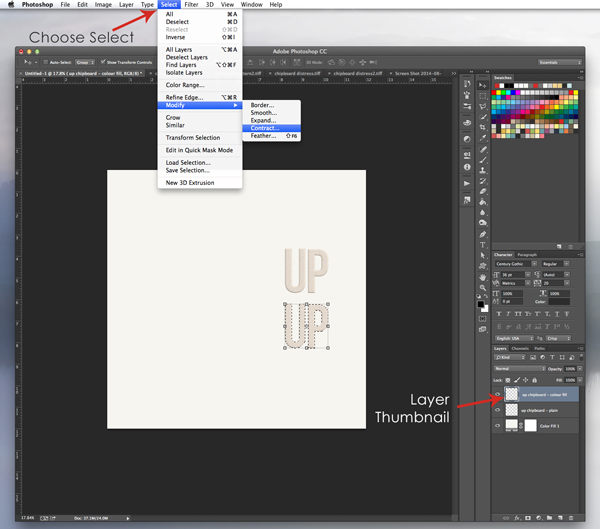
As seen below, the new selection has pulled away from the edge of the letters by 10 pixels. Now add some colour: Create New Fill Layer > Solid Color > Choose colour.
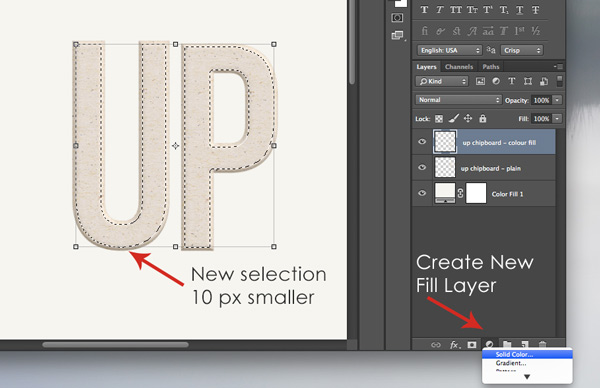
And, once again, change the blending option from Normal to Multiply.

Now comes the tricky part… distressing! We want the chipboard to look like it was sanded on the edges. Click on the Color Mask (the black box linked with the Color Fill layer) and make sure it is highlighted. Then make sure the Foreground Colour is set to black. Select the Brush Tool, choose a spatter-like brush from the menu, and change the size to 70-100 px. Also, ensure the Brush Mode is normal. Then start clicking with the spatter brush around the edges of the colour to give a distressed or sanded look.
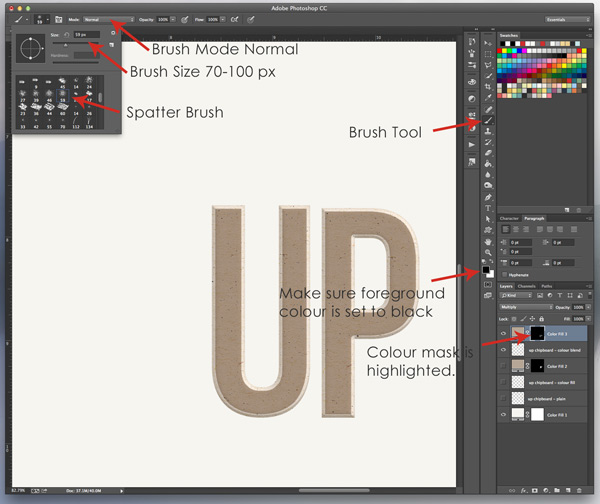
If nothing happens when using the brush, double check that the Colour Mask is highlighted, not the Colour Fill Layer Thumbnail. Or if the spatter shows up outside the letter, make sure the foreground colour is set to black and not white. I only mention these two tips because I made both of these mistakes when I first learned how to distress chipboard!!
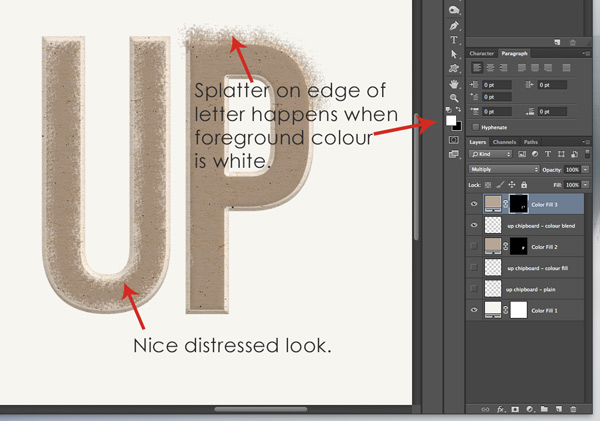
Distressing a letter takes a bit of time and patience but is well worth it in the end!
Here is a layout I created using patterned and distressed chipboard: (Digital kits “One For The Album” and “Scenes From Real Life” by One Little Bird Designs.)

The first part of the chipboard title “LOOK UP” has been recoloured and a subtle polka dot pattern added over top. There was already a lot of patterns on this layout and I didn’t want the pattern of the chipboard to clash. I also clipped and blended an arrow shape to the word “UP”. The second part of the title “WAY UP” was simply distressed for some added texture to the page.
I hope, after this two-part tutorial, you are inspired to play around with the chipboard alphabet.
Reminder: The chipboard alphabet is available free for a limited time (until Sept. 30, 2014) as part of the Fall Edition of the Hello 2014 digital kit. Visit Birdwing Paper Designs Facebook Page and click “Like” to get this free kit.
Leah

For a limited time on Birdwing Paper Designs Facebook Page, the fall edition of the Hello 2014 digital kit is available for FREE. Included in this free kit is a chipboard alphabet. This alphabet has a modern, chunky look that … Continue reading
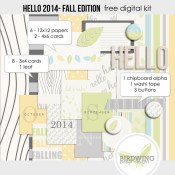
Yes, I know, it isn’t fall yet! But the release of the fall edition of Hello 2014 digital kit will be coming a bit early, Aug 19. I recently discovered that Facebook is eliminating fan-gating (Like a Page and receive a download, … Continue reading
 Birdwing Paper Designs